How to Download Google Maps for Offline Use !!!

If you’ve ever wanted to be able to download Google Maps data for offline use, you should check out gmapcatcher, a cross-platform application that caches map segments locally.
There’s both a GUI version and a command-line version that you can use to pull down the maps data. The whole thing is written in Python, but the installer should handle everything for Windows users. If not, install Python and try again.
Download from here
gmapcatcher [Google Code]
“Here you have” Virus - W32/VBMania@MMere
A new version of "I love you" virus/worm called "Here you have" Virus came out of the underground. All it does when ran is distribute itself using your addressbook. Many big corporations were hit, and antivirus software had to release an emergency updates.
Here are some details on the virus and how to detect it and clean it:

Antivirus vendors and the US-CERT have issued alerts of a worm spreading through email with the subject "Here you have" and being identified as the W32/VBMania@mm or “VBMania” worm by McAfee, W32.Imsolk.B@mm by Symantec, or simply the “here you have” virus.Removing W32/VBMania@mm
The virus has been spreading primarily via email, asking recipients to click on a link masked as a PDF file that actually links to malware being hosted on an external server. In a sample, an emailed contained a link to “PDF_Document21_025542010_pdf.scr’” which directed users to malware hosted on the domain “members.multimania.co.uk.”
When a user clicks on the link, their computer instantly downloads and launches the malware. It then copies itself into the Windows directory using the name CSRSS.EXE, an identical file name to a legitimate Windows file, according to McAfee researchers.
Symantec warned that the worm also attempts to spread from computer to computer over local networks (other computers on a home or office network) by copying itself to shared drives on the network. Once the threat copies itself to another machine, if a user opens the folder that contains the threat, it will launch and start a whole new cycle.
Make Sure Downloads Are Safe Before Downloading Them !!!!
VirusTotal is an online service that scans files for viruses with over 40 different security tools. Since there have been security concerns with a wide variety of files that are normally safe, such as PowerPoints and PDF files, we’d recommend you scan any file you’re downloading, especially if it’s from an unknown source. To do this, just right-click on the file’s link, and select Copy link address.


After a few moments, you’ll see the results of your file’s virus scan. If it shows that nothing was detected, then you can feel fairly safe that the file is fine to download and use. It is possible for a new malicious file to slip by all of the scanners, but very unlikely.

If one of the scanners does detect malicious content, it’ll list what it detected. Do note that sometimes a scanner will wrongly think a file contains a virus when it’s in fact clean, so if the majority of the scanners report that the file’s ok, you may still be fine to use it.
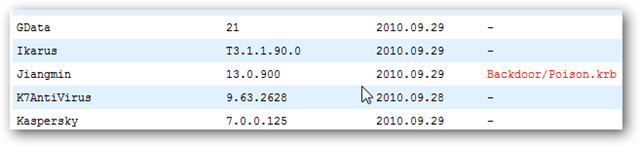

You can use this same trick to check any website for malicious content, even if it doesn’t contain a download. If you’re emailed a link or come across a search result you’re unsure about, feel free to copy the URL and scan it with VirusTotal as before to see if the site contains malicious content.

Create Password Recovery Disk In Windows XP

Take preventive measures against losing user-level passwords.
It doesn't matter if you never again remember a Windows user password. Thanks to XP's Forgotten Password Wizard, your conscience will be free and clear -- should your mind happen to accidentally misplace your user password.
I highly suggest you create a password recovery disk the minute you create your user account. Why? In order to create a password recovery disk you're going to need your password. Write it down the minute you create your user account and then proceed to creating your very own password recovery disk.
Here's how to launch the Forgotten Password Wizard:
Single-click Start menu, Control Panel, and User Accounts.
Click your user account name.
Under Related Tasks on the left, click "Prevent forgotten password" to launch the wizard.
Now that you've launched the wizard, let it walk you through creating the recovery disk. Make sure the disk you use is formatted and in the drive. After it's finished creating the disk, label it and stash it away for an emergency.
If you happen to forget your password, all you need to do is click your user icon at the logon screen. Even though you don't have your password, go ahead and click the green arrow just like you would to finish logging on to your computer. This will launch a little yellow dialog box directing you to use your password recovery disk.
Subscribe to:
Posts (Atom)

Logo



